
HTML WYSIWYG Editor
Format text the way you would in a word processor and get clean HTML you can paste into a website, blog, CMS field or email. The editor strips inline styles and scripts, keeps semantic tags such as headings, lists, links and tables, and shows the code side by side so you can check or tweak it.
- Free to use
- No sign-up
- Runs in your browser
Visual HTML editor
Welcome to our workshop
Join us for a hands-on session on container gardening.
- Saturday, 10:00–12:00
- Community garden, Plot 4
Book on our events page.
HTML Content Formatting Reference
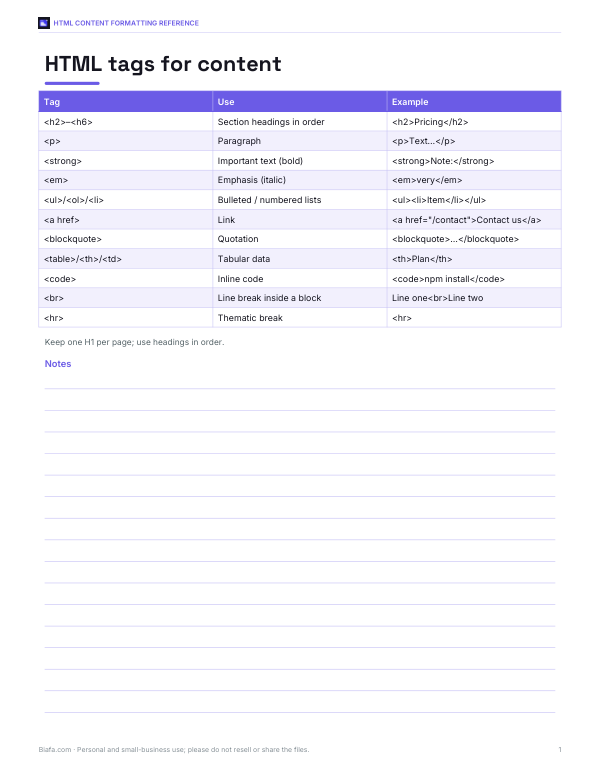
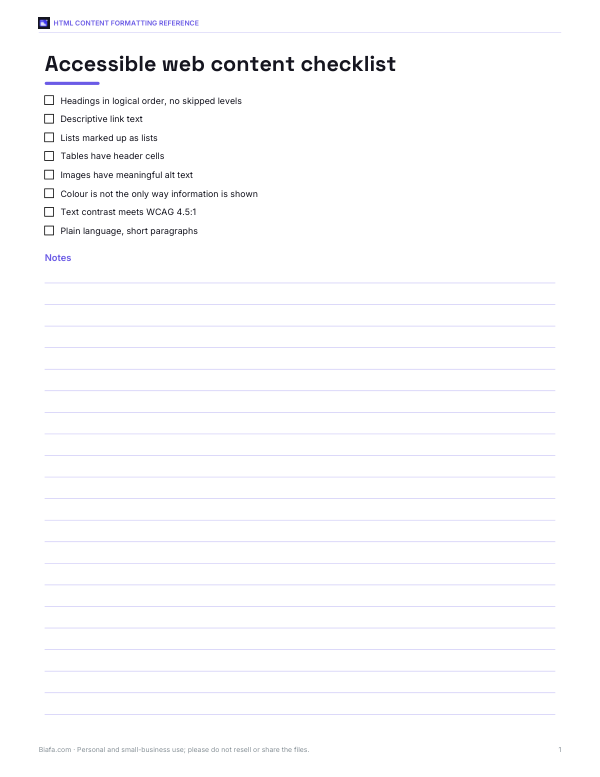
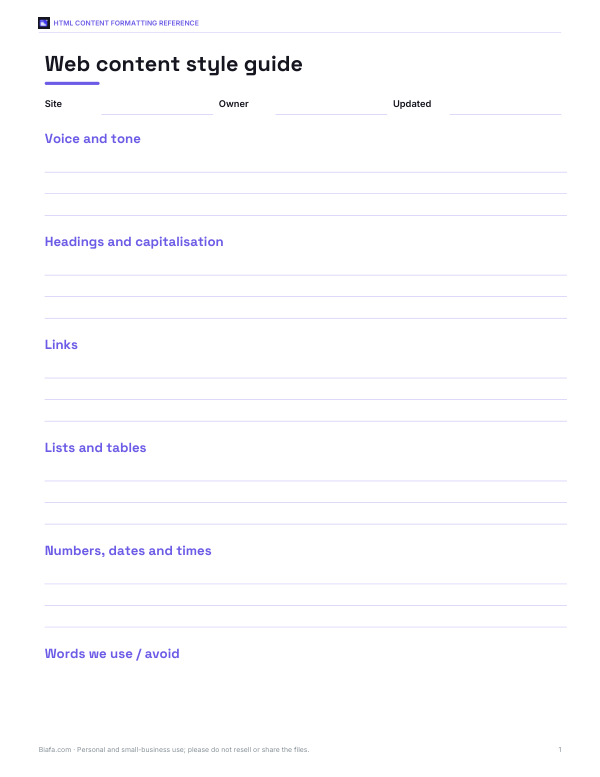
Printable HTML tag cheat sheet, semantic content style guide, web accessibility checklist for content and a CMS content brief template.
- HTML cheat sheet (PDF)
- Accessibility checklist (PDF, DOCX)
- Content style guide (DOCX)
- Content brief (PDF, DOCX, XLSX)
Formats: PDF, DOCX, XLSX. Instant download after payment (link valid 72 hours, up to 5 downloads). AI-assisted: the templates were drafted with AI help and reviewed and laid out before publishing.
$5.00 USD, one-time 4 files · about $1.25 each
- Instant download
- 7-day refund
- Secure checkout by Stripe
7-day money-back guarantee. Full refund within 7 days of purchase, even after you download.
Free sample: CMS Content Brief (PDF, 60 KB)
Full refund within 7 days — see the refund policy and license.
Free printables
Single sheets you can print right now, no sign-up. The full pack adds every sheet in one download plus the editable files.
 Printable Content Brief Template
What a WYSIWYG HTML editor does
WYSIWYG stands for “what you see is what you get”. Instead of typing tags such as <h2> and <ul>, you format text with toolbar buttons and the editor writes the HTML for you. This editor goes a step further and cleans the result: it keeps meaningful, semantic tags — headings, paragraphs, lists, links, quotes and tables — and removes inline styles, fonts, classes, scripts and empty tags that often come along when you paste from word processors or other websites. The HTML panel shows exactly what you will paste into your site.
How to use the editor
- Type or paste your content into the editing area.
- Select text and use the toolbar: H2 and H3 for headings, B and I for bold and italic, bullet and numbered lists, quote, link and table.
- Check the HTML panel below; it updates as you type.
- Tick “Open links in new tab” if your site needs it (the editor adds
rel="noopener"for safety). - Copy the HTML, or download it as a file.
- To edit existing HTML, paste it into the code box and click “Load HTML into editor”.
What gets cleaned
| Removed | Why |
|---|---|
| Inline styles, fonts, colours and classes | They override your site’s design and make pages inconsistent |
| Scripts, iframes, forms and embeds | Security: pasted code should never run on your page |
| Event attributes (onclick, onload…) | Security: can execute JavaScript |
| Links with javascript: or data: URLs | Security; only http, https, mailto, tel and relative links are kept |
| Empty paragraphs and non-breaking spaces | Tidy code and spacing |
| Microsoft Word and Google Docs markup | Extra spans and attributes bloat the HTML |
Bold and italic are converted to <strong> and <em>, which carry meaning for screen readers and search engines, and <div> blocks become paragraphs.
Writing good HTML content
- Use one H1 per page (usually the page title set by your CMS) and H2/H3 for sections — do not skip levels just for size.
- Use lists for lists: they are easier to scan and screen readers announce the number of items.
- Write descriptive link text such as “see our events page” rather than “click here”.
- Keep paragraphs short for reading on phones.
- Use tables for tabular data only, with header cells, not for layout.
- Add alt text to images in your CMS; this editor focuses on text content.
Where to use the HTML
| Destination | Tip |
|---|---|
| CMS “HTML” or “source” view | Paste into the code view, not the visual view, to keep the markup |
| Website builders with an HTML block | Paste the snippet; site styles will apply |
| Product descriptions (e-commerce) | Headings and lists make descriptions scannable |
| Email newsletters | Many email tools need inline styles; paste into their editor and apply their styles |
| Documentation and help centres | Semantic HTML converts cleanly to other formats |
Worked example
A community garden’s volunteer copies an event announcement from a word processor into a website form and gets a mess of fonts and spacing. Pasting it into this editor keeps the heading, the bold “hands-on”, the two-item list and the link, but strips the Calibri font, the 11pt size and dozens of span tags. The cleaned HTML is about a quarter of the original length and matches the website’s own styles when pasted into the CMS source view.
Security note
Never paste HTML from untrusted sources directly into a website. The cleaner here removes scripts, event handlers and unsafe link types, which covers the most common risks, but your CMS or framework should still sanitise input on the server. For user-generated content on your own site, use a well-maintained server-side sanitiser library.
HTML editor vs Markdown
Markdown is a plain-text format that many developers, documentation tools and forums use; it converts to HTML. A visual editor suits people who prefer to see formatting as they write, and it produces HTML directly for places that expect it, such as CMS source fields and e-commerce product descriptions. If your platform accepts Markdown, either approach works; if it only accepts HTML or a rich-text box that mangles pasted formatting, cleaning the content here first gives the most predictable result.
Keyboard shortcuts
Most browsers support Ctrl+B (⌘B on Mac) for bold, Ctrl+I for italic, and Ctrl+Z to undo inside the editing area. Pressing Enter creates a new paragraph; Shift+Enter inserts a line break. In lists, press Enter twice to leave the list.
Privacy
Everything runs in your browser. The text you type or paste is not uploaded or stored, and it is cleared when you close the page — copy or download your HTML before leaving.
Frequently asked questions
What is a WYSIWYG HTML editor?
An editor where you format text visually and it generates the HTML code for you.
Does it remove inline styles?
Yes. It keeps semantic tags and removes styles, fonts, classes and scripts.
Can I paste from Word or Google Docs?
Yes. The formatting is cleaned to simple HTML as you paste.
Can I edit existing HTML?
Paste it into the code box and click “Load HTML into editor”.
Is it safe to paste the output into my site?
The output is sanitised for common risks, but your site should also sanitise input on the server.
Is my content uploaded?
No, everything stays in your browser.